Online report guide
What the online report can do, how to use it, and what happens when it expires.
Open the report
- Under Available Reports, click Open online report. The viewer opens in a new tab.
- The countdown at the top is the online access remaining. Until it reaches zero you can open the report as often as you like.
Matches and sources
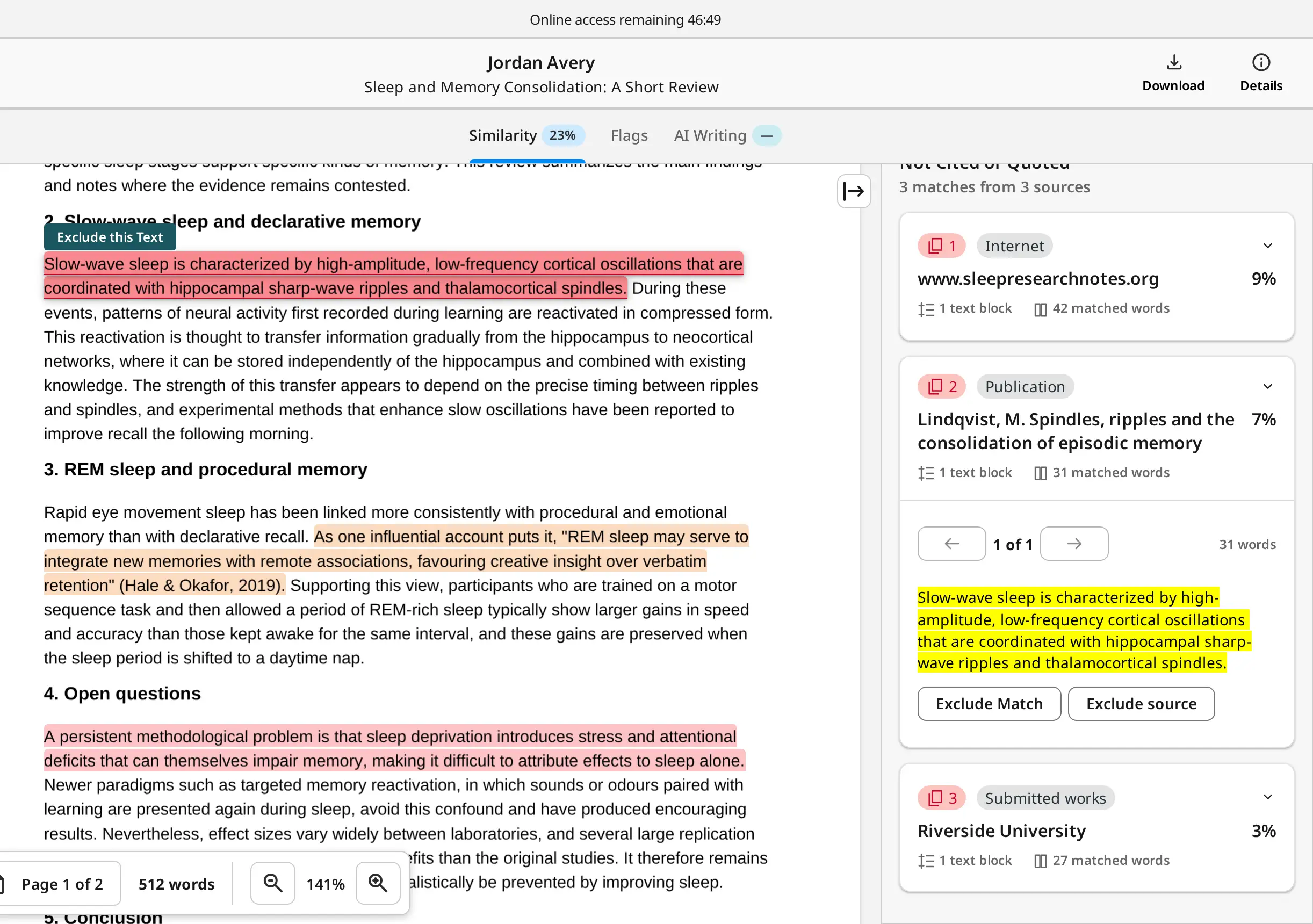
- Highlighted text matches a source. The number in the margin is the source number.
- Click a source on the right: the document scrolls to the match, and you can step through all matches of that source.
- Exclude source removes this source from the similarity result. Excluded sources can be restored at any time.
Filters
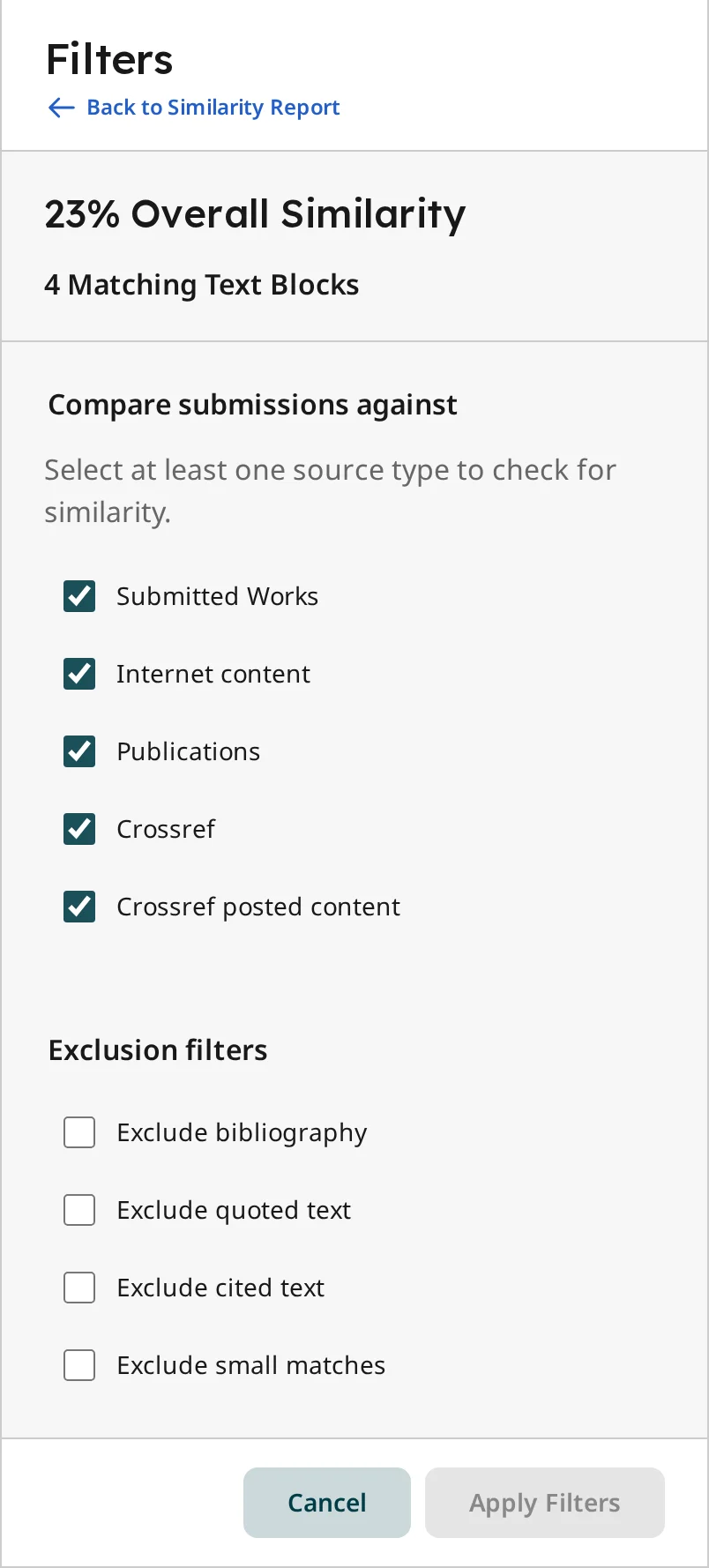
Bibliography or quotations counted as matches? Adjust what is included.
- Click Filters and tick what to exclude: bibliography, quoted text, cited text, or small matches below a word count.
- Click Apply Filters. The score and the highlights are recalculated immediately.
Download the PDF
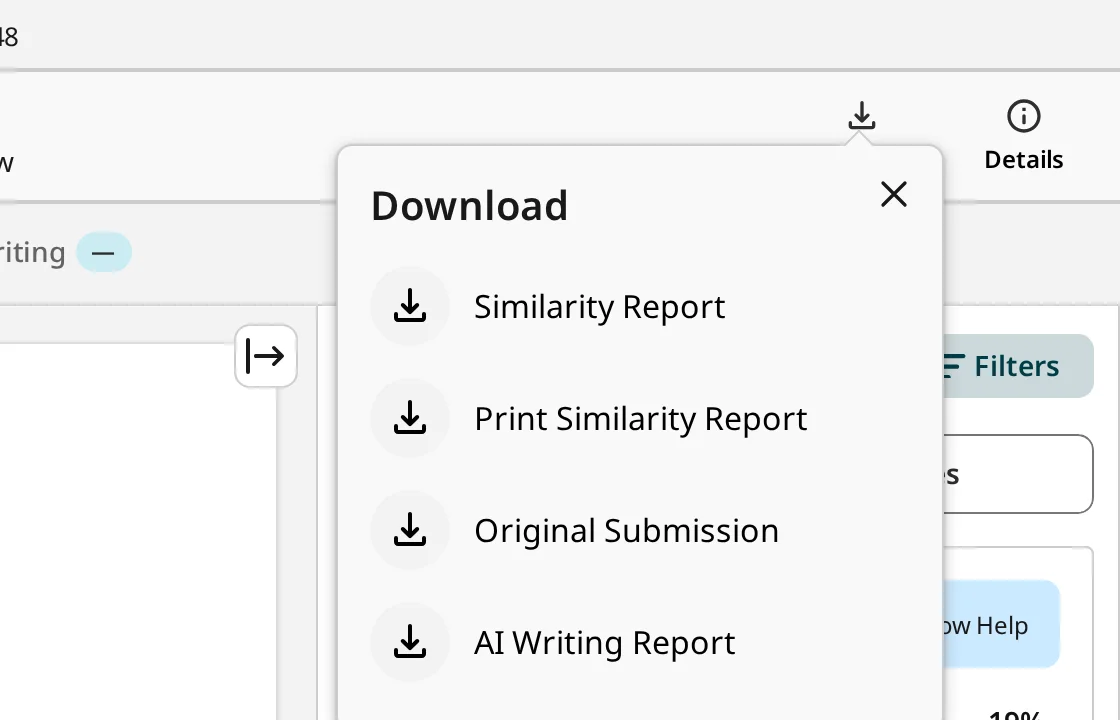
- Click Download in the header.
- Choose Similarity Report or AI Writing Report. The PDF is generated with the filters currently applied.
AI writing detection
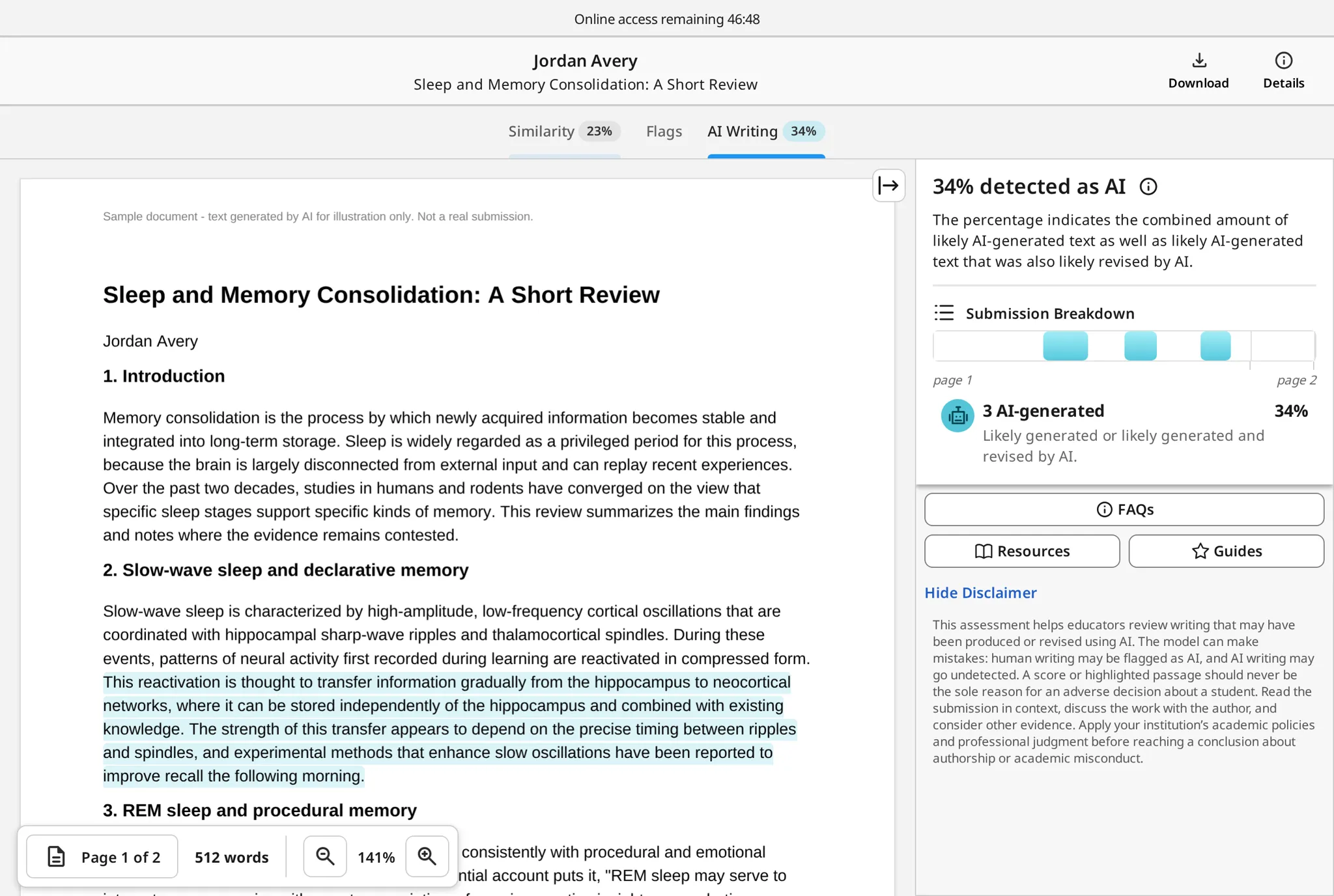
- Switch to the AI Writing tab.
- Highlighted passages are the text identified as AI-generated.
- The breakdown bar shows where they are in the document; click a segment to jump to it.
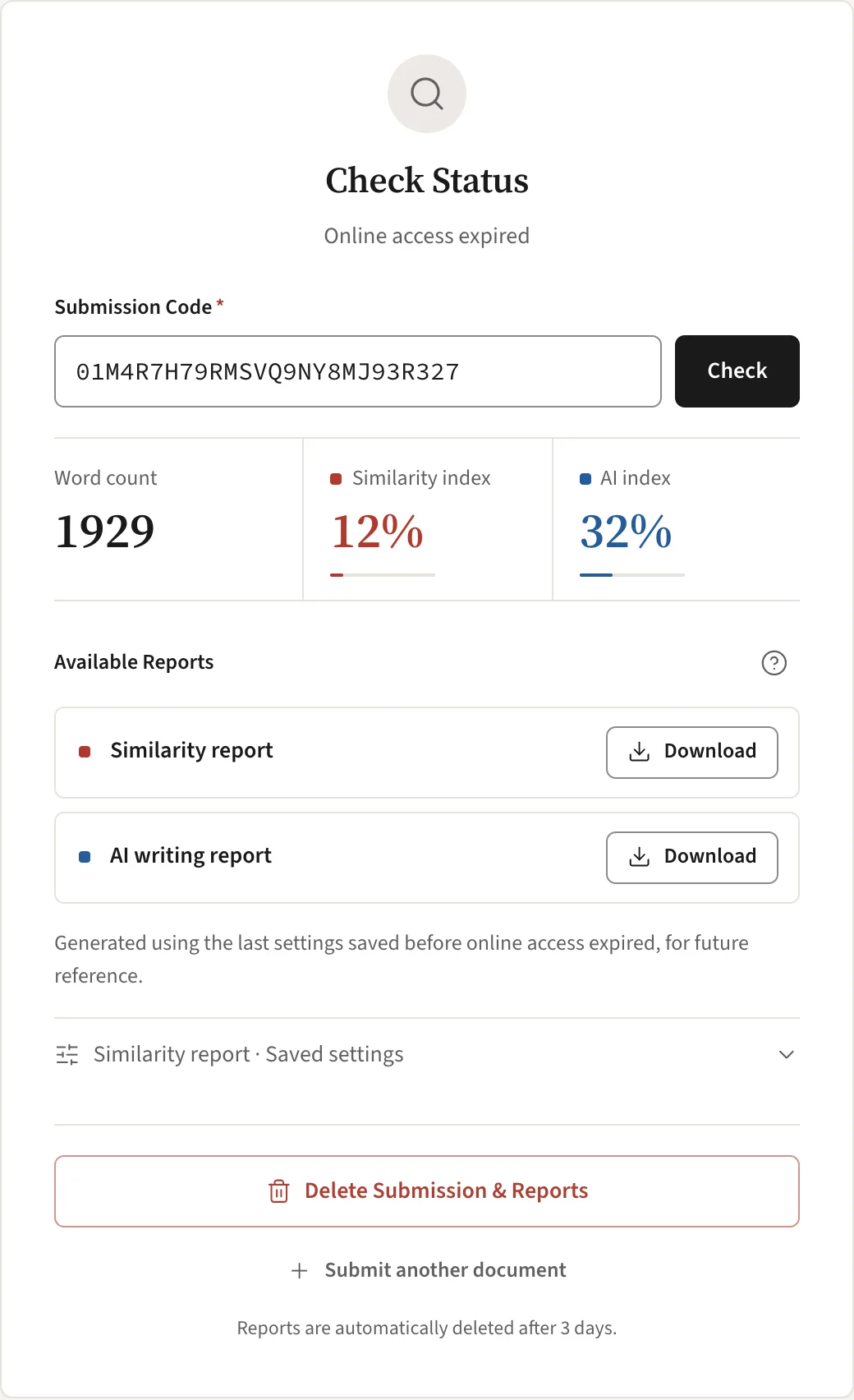
After online access expires
Backups are generated automatically with the last settings you saved.
- Return to the results page with your code and download the similarity and AI writing report PDFs.
- Saved settings shows the filters the similarity backup was generated with.
- The AI report retains its final result. Similarity exclusions apply only to the similarity report.
- Deleting the submission permanently invalidates the code and removes the document and all reports.